

Prerequisites
- A Redis instance accessible over the internet
- Redis hostname and port
- Authentication credentials (if required)
- TLS certificate (for secure connections)
Setting Up a Direct Connection
Enter connection details
Fill in your Redis connection information: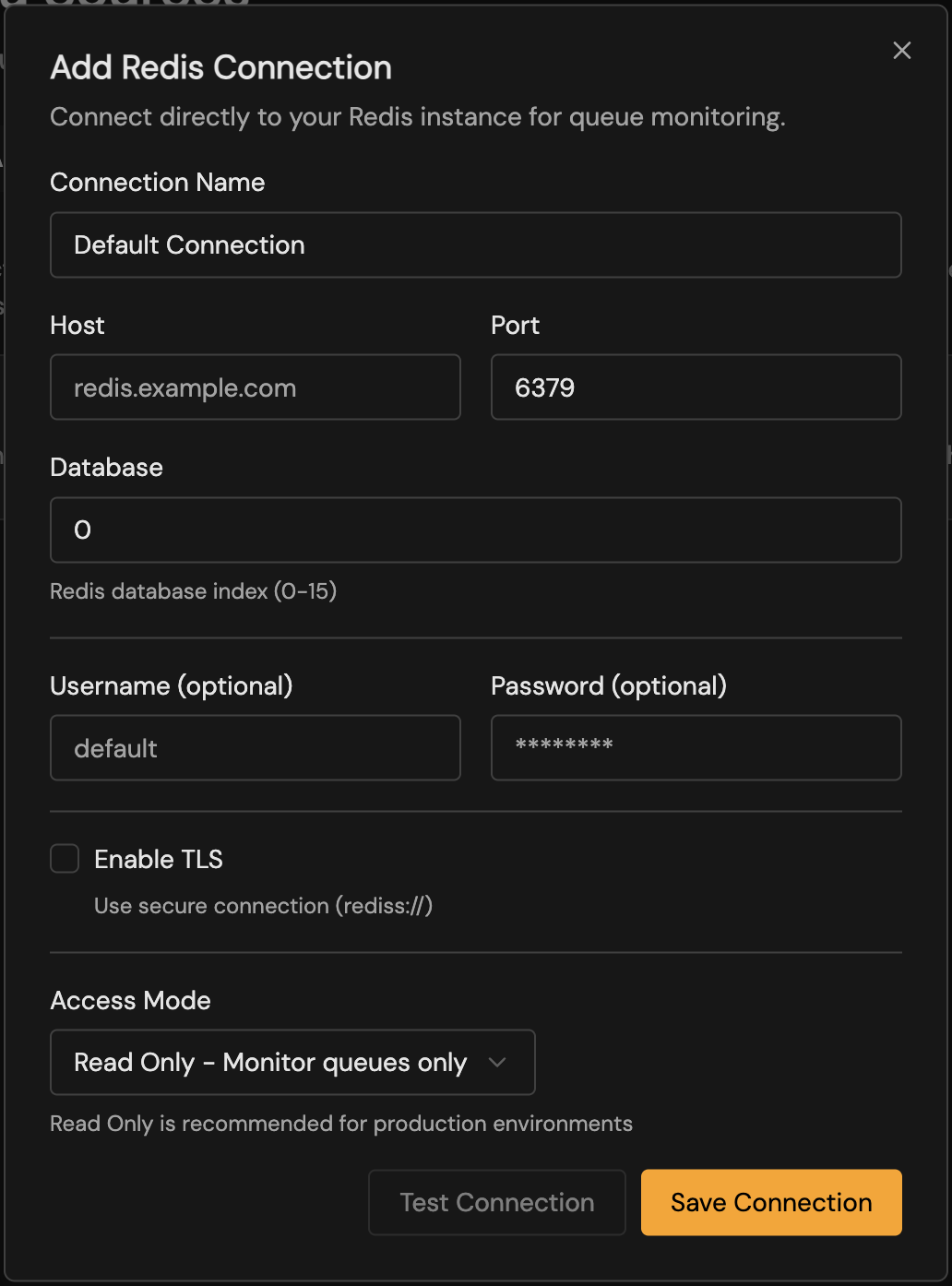
| Field | Description | Required |
|---|---|---|
| Name | A friendly name for this connection | Yes |
| Host | Redis hostname or IP address | Yes |
| Port | Redis port (default: 6379) | Yes |
| Database | Redis database number (default: 0) | No |
| Username | Redis ACL username (Redis 6+) | No |
| Password | Redis password | No |
| TLS | Enable TLS encryption | Recommended |
TLS Configuration
Standard TLS
For most managed Redis services, simply enable the TLS toggle. bullstudio will use standard TLS verification.Custom CA Certificate
If your Redis uses a self-signed or private CA certificate:- Enable TLS
- Paste your CA certificate in PEM format in the TLS Certificate field
Authentication
Password-Only (Redis 5 and earlier)
Enter your Redis password in the Password field. Leave Username empty.ACL Authentication (Redis 6+)
Redis 6 introduced Access Control Lists (ACL) for fine-grained permissions:- Enter the ACL Username
- Enter the corresponding Password
Example: Creating a Read-Only Redis User
- Read all keys (
~*) - Execute read commands (
+@read) - Manage connections (
+@connection) - Run
CLIENT,INFO, andPINGcommands
Access Modes
bullstudio supports two access modes:| Mode | Description | Capabilities |
|---|---|---|
| Read-Write | Full access to queue operations | View jobs, retry failed jobs, remove jobs, pause/resume queues |
| Read-Only | Monitoring only | View jobs and metrics; no modifications allowed |
Use Read-Only mode for production environments where you want to prevent accidental job modifications.
Cloud Provider Examples
- AWS ElastiCache
- Redis Cloud
- Upstash
- Railway
- Enable In-Transit Encryption on your ElastiCache cluster
- Use the Primary Endpoint as the host
- Enable TLS in bullstudio
- Enter your AUTH token as the password
Troubleshooting
Connection timeout
Connection timeout
Causes:
- Redis is not publicly accessible
- Firewall blocking the connection
- Incorrect hostname or port
- Verify your Redis instance allows external connections
- Check security group / firewall rules allow inbound traffic on the Redis port
- Confirm the hostname and port are correct
- Ensure your Redis instance is publicly accessible
Authentication failed
Authentication failed
Causes:
- Incorrect password
- Wrong username (for ACL auth)
- User doesn’t have required permissions
- Double-check your password
- For Redis 6+, ensure you’re using the correct username
- Verify the user has at least read permissions
TLS handshake failed
TLS handshake failed
Causes:
- TLS not enabled on Redis
- Certificate verification failed
- Wrong port (TLS vs non-TLS)
- Confirm TLS is enabled on your Redis instance
- Some providers use different ports for TLS (e.g., 6380)
- If using a self-signed certificate, add it to the TLS Certificate field
No queues found
No queues found
Causes:
- Connected to wrong Redis database
- No BullMQ queues exist yet
- Queues use a custom prefix
- Verify the database number (0-15)
- Confirm your application has created queues
- Check if your queues use a non-default prefix
Next Steps
Dashboard
Explore your queue metrics and analytics.
Job Management
Browse and manage individual jobs.